> ## Documentation Index
> Fetch the complete documentation index at: https://docs.sentrion.ai/llms.txt
> Use this file to discover all available pages before exploring further.
# Account Tracking
> Monitor specific companies for hiring signals with ABM-style account tracking
Account Tracking lets you monitor a defined list of companies for new hiring signals instead of discovering new companies through ICP-based search. Switch from the **ICP** tab to the **Track** tab in any campaign to enable it.
## How it works
In standard (ICP) mode, Sentrion discovers companies matching your filters. In Track mode, you provide the exact list of companies you want to monitor, and Sentrion watches them for new job postings that match your signal filters.
Track mode replaces company filters entirely. Instead of searching by ICP criteria (industry, size, location), you provide the exact list of companies you want to monitor.
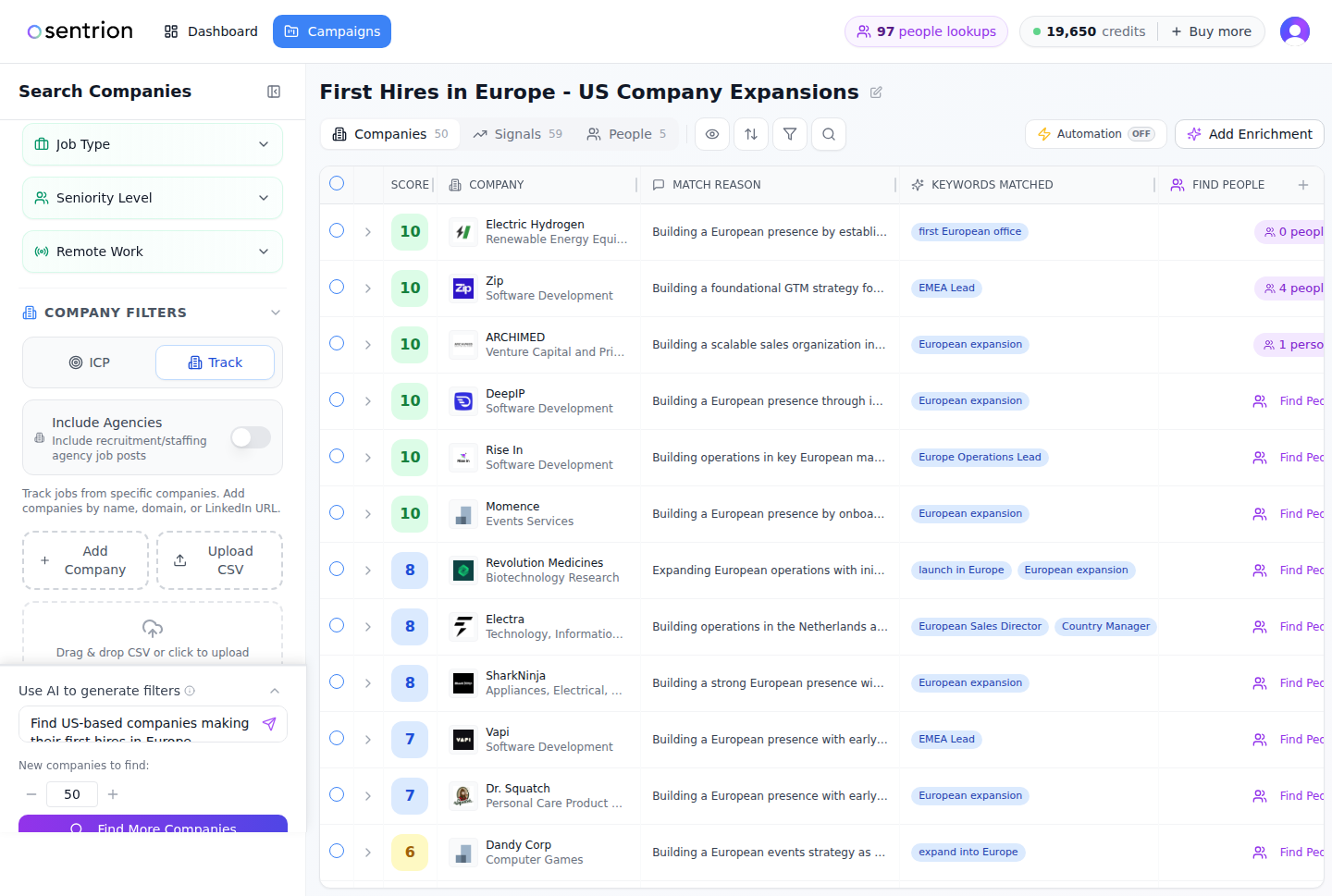 ## Adding companies
You can add companies to your tracking list in two ways:
### Search by name, domain, or LinkedIn
Click **Add Company** and search by:
* Company name (e.g., "Stripe")
* Domain (e.g., "stripe.com")
* LinkedIn URL (e.g., "linkedin.com/company/stripe")
Sentrion resolves the company and adds it to your tracking list.
### Bulk import via CSV
For larger lists, use CSV upload:
1. Click **Upload CSV**
2. Drag and drop your file or use the file picker
3. Sentrion's AI auto-detects name, domain, and LinkedIn columns from your CSV
This is ideal for importing target account lists from your CRM, sales engagement platform, or spreadsheets.
## When to use account tracking
Account tracking is the right mode when you already know *which* companies to watch, and want to catch *when* they start hiring for roles that matter to you:
* **ABM campaigns**: monitor your top target accounts for new hiring signals that create openings for outreach
* **Competitor monitoring**: track competitors' hiring patterns to understand their strategy, investments, and growth areas
* **Pipeline tracking**: watch accounts in your active sales pipeline for new signals that strengthen your timing or positioning
* **Customer intelligence**: monitor existing customers for expansion signals, new initiatives, or leadership changes that create upsell opportunities
* **Market research**: track a set of companies in a specific vertical to understand industry-wide hiring trends
## Combining with signal filters
Track mode works alongside all job signal filters. After adding your companies, configure:
* **Job Keywords**: surface only the roles and technologies you care about
* **Departments**: focus on specific teams (e.g., Engineering, Sales)
* **Seniority Level**: filter for leadership hires vs. individual contributors
* **AI Signal Scoring**: score and rank signals by relevance to your criteria
* **Signal Date Range**: control how far back to look for postings
This combination lets you answer questions like "Which of my top 100 target accounts posted a VP of Engineering role in the last 30 days?"
## Track mode vs. ICP mode
| | ICP Mode (default) | Track Mode |
| ------------------- | ---------------------------------- | ------------------------------- |
| **Purpose** | Discover new companies | Monitor known companies |
| **Input** | Filters (industry, size, location) | Specific company list |
| **Best for** | Top-of-funnel discovery | ABM, pipeline, competitor intel |
| **Company filters** | Active (industry, size, HQ) | Replaced by your company list |
| **Signal filters** | Active | Active |
## Setting up automation
Once your tracked accounts and signal filters are configured, enable **Auto-Update** in the [Automation](/guide/automation) panel to receive daily updates when new matching signals appear. Combined with [webhook exports](/integrations/webhooks), you can push new signals directly to your CRM or Slack as they're detected.
## What to do next
Master AI search, job filters, and company filters for ICP-based discovery
Set up daily auto-updates and webhook exports for your tracked accounts
## Adding companies
You can add companies to your tracking list in two ways:
### Search by name, domain, or LinkedIn
Click **Add Company** and search by:
* Company name (e.g., "Stripe")
* Domain (e.g., "stripe.com")
* LinkedIn URL (e.g., "linkedin.com/company/stripe")
Sentrion resolves the company and adds it to your tracking list.
### Bulk import via CSV
For larger lists, use CSV upload:
1. Click **Upload CSV**
2. Drag and drop your file or use the file picker
3. Sentrion's AI auto-detects name, domain, and LinkedIn columns from your CSV
This is ideal for importing target account lists from your CRM, sales engagement platform, or spreadsheets.
## When to use account tracking
Account tracking is the right mode when you already know *which* companies to watch, and want to catch *when* they start hiring for roles that matter to you:
* **ABM campaigns**: monitor your top target accounts for new hiring signals that create openings for outreach
* **Competitor monitoring**: track competitors' hiring patterns to understand their strategy, investments, and growth areas
* **Pipeline tracking**: watch accounts in your active sales pipeline for new signals that strengthen your timing or positioning
* **Customer intelligence**: monitor existing customers for expansion signals, new initiatives, or leadership changes that create upsell opportunities
* **Market research**: track a set of companies in a specific vertical to understand industry-wide hiring trends
## Combining with signal filters
Track mode works alongside all job signal filters. After adding your companies, configure:
* **Job Keywords**: surface only the roles and technologies you care about
* **Departments**: focus on specific teams (e.g., Engineering, Sales)
* **Seniority Level**: filter for leadership hires vs. individual contributors
* **AI Signal Scoring**: score and rank signals by relevance to your criteria
* **Signal Date Range**: control how far back to look for postings
This combination lets you answer questions like "Which of my top 100 target accounts posted a VP of Engineering role in the last 30 days?"
## Track mode vs. ICP mode
| | ICP Mode (default) | Track Mode |
| ------------------- | ---------------------------------- | ------------------------------- |
| **Purpose** | Discover new companies | Monitor known companies |
| **Input** | Filters (industry, size, location) | Specific company list |
| **Best for** | Top-of-funnel discovery | ABM, pipeline, competitor intel |
| **Company filters** | Active (industry, size, HQ) | Replaced by your company list |
| **Signal filters** | Active | Active |
## Setting up automation
Once your tracked accounts and signal filters are configured, enable **Auto-Update** in the [Automation](/guide/automation) panel to receive daily updates when new matching signals appear. Combined with [webhook exports](/integrations/webhooks), you can push new signals directly to your CRM or Slack as they're detected.
## What to do next
Master AI search, job filters, and company filters for ICP-based discovery
Set up daily auto-updates and webhook exports for your tracked accounts