> ## Documentation Index
> Fetch the complete documentation index at: https://docs.sentrion.ai/llms.txt
> Use this file to discover all available pages before exploring further.
# Search & Filters
> AI-powered search, job signal filters, company filters, and Track mode
## AI-powered search
The fastest way to find companies. Describe what you're looking for in plain English and Sentrion's AI generates structured filters automatically.
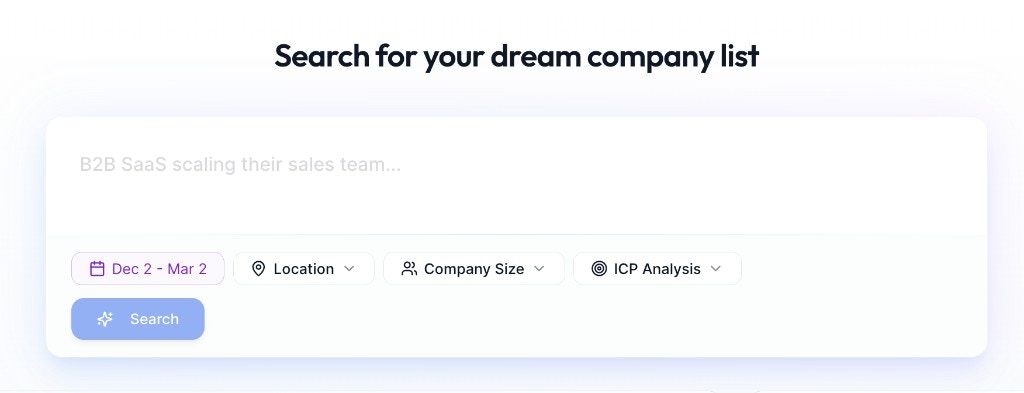
### From the Dashboard
1. Type your query into the main search bar (e.g., *"SaaS companies hiring for sales roles in Europe"*)
2. Optionally set quick filters: **Signal Date Range**, **Location**, **Company Size**, **ICP Analysis**
3. Click the purple **Search** button. This creates a new campaign with results
 ### From inside a campaign
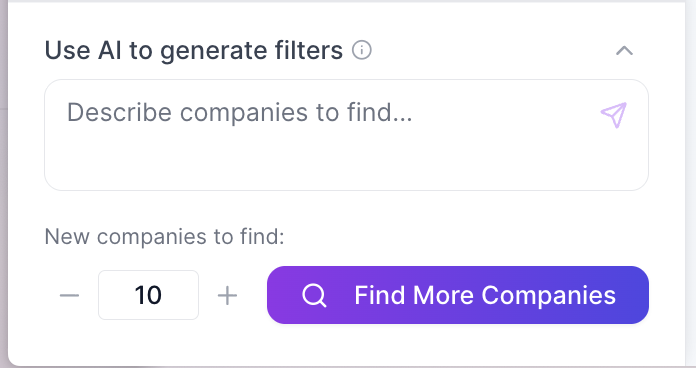
1. In the left sidebar, scroll to **"Use AI to generate filters"**
2. Type a natural language description of what you're looking for
3. Click the purple **send button**
4. AI populates all sidebar filters (keywords, departments, scoring criteria, etc.)
5. Set **"New companies to find"** (default: 50)
6. Click **Find Companies** to run the search
### From inside a campaign
1. In the left sidebar, scroll to **"Use AI to generate filters"**
2. Type a natural language description of what you're looking for
3. Click the purple **send button**
4. AI populates all sidebar filters (keywords, departments, scoring criteria, etc.)
5. Set **"New companies to find"** (default: 50)
6. Click **Find Companies** to run the search
 ### Example prompts
* *"Find companies launching new AI initiatives"*
* *"SaaS companies hiring VP of Sales"*
* *"Tech companies in NYC building AI products"*
* *"Manufacturing companies in the UK looking for C++ developers"*
* *"Find US-based companies making their first hires in Europe"*
* *"Companies adopting Kubernetes"*
### Tips
* Be specific about industry, role, and location for better results
* Include the type of signal you're looking for (hiring, expanding, new office, tech adoption)
* **Always review generated keywords for false positives.** The AI may include terms that are too broad or ambiguous. Remove any that could match irrelevant job postings and add exclusion terms for common sources of noise
* You can manually adjust any AI-generated filter after it's applied
* Each job found costs **1 credit**; filtering and browsing existing results is free
## Signal date range
Controls how far back Sentrion looks for job postings.
* **Last 7-30 days**: companies actively hiring right now (hottest prospects)
* **Last 3 months**: good balance of recency and volume (default)
* **6+ months**: trend analysis and market research
Set the **"From"** date in the sidebar to control the range.
## Job signal filters
These filters narrow results based on job posting content.
### Job keywords
Two types of keyword matching:
* **Job Title Keywords**: terms to match in job titles (e.g., "Europe Lead", "Country Manager", "VP Sales")
* **Job Description Keywords**: terms to match in job descriptions (e.g., "first hire Europe", "build European team")
### Example prompts
* *"Find companies launching new AI initiatives"*
* *"SaaS companies hiring VP of Sales"*
* *"Tech companies in NYC building AI products"*
* *"Manufacturing companies in the UK looking for C++ developers"*
* *"Find US-based companies making their first hires in Europe"*
* *"Companies adopting Kubernetes"*
### Tips
* Be specific about industry, role, and location for better results
* Include the type of signal you're looking for (hiring, expanding, new office, tech adoption)
* **Always review generated keywords for false positives.** The AI may include terms that are too broad or ambiguous. Remove any that could match irrelevant job postings and add exclusion terms for common sources of noise
* You can manually adjust any AI-generated filter after it's applied
* Each job found costs **1 credit**; filtering and browsing existing results is free
## Signal date range
Controls how far back Sentrion looks for job postings.
* **Last 7-30 days**: companies actively hiring right now (hottest prospects)
* **Last 3 months**: good balance of recency and volume (default)
* **6+ months**: trend analysis and market research
Set the **"From"** date in the sidebar to control the range.
## Job signal filters
These filters narrow results based on job posting content.
### Job keywords
Two types of keyword matching:
* **Job Title Keywords**: terms to match in job titles (e.g., "Europe Lead", "Country Manager", "VP Sales")
* **Job Description Keywords**: terms to match in job descriptions (e.g., "first hire Europe", "build European team")
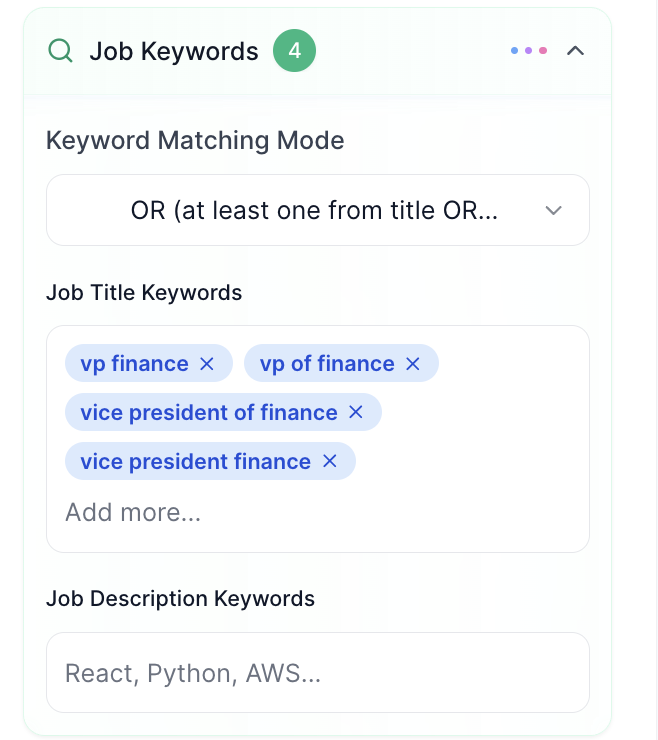 **Keyword Matching Mode:**
* **OR**: any keyword match counts (broader results). Best for most searches.
* **AND**: all keywords must match (precise targeting). Use for very specific searches.
Keywords appear as removable tags. The count badge shows how many keywords are active.
### Exclude keywords
Remove unwanted results by adding exclusion terms. Common exclusions:
* "intern", "internship", "part-time", "volunteer": focus on real hiring signals
* "agency", "staffing": remove recruiter postings
* "assistant", if you're targeting senior roles
### Departments
Searchable checkbox list to filter by department. Options include: Accounting, Administration, Business Development, Communications, Compliance, Customer Success, Data Analytics, Design, Engineering, Finance, Human Resources, Information Technology, Marketing, Sales, and 20+ more.
### Job location
Geographic filter for where jobs are posted. Useful for finding companies hiring in specific regions.
### Job type
Filter by employment type: Full-time, Part-time, Contract, Internship, Volunteer.
### Seniority level
Three levels:
* **Entry Level**: individual contributors, junior roles
* **Mid Level**: experienced professionals, team leads
* **Executive Level**: directors, VPs, C-suite
### Remote work
Filter for remote, hybrid, or on-site positions.
## Company filters (ICP mode)
Filter by company characteristics. These are available when the **ICP** tab is selected (default) at the top of the Company Filters section.
### Include agencies
Toggle to include or exclude recruitment/staffing agency job posts. **OFF by default**: filters out agency postings so you only see direct company hiring.
### Company size
Employee count range selector with tiles: 1-10, 11-50, 51-200, 201-500, 501-1K, 1K-5K, 5K-10K, 10K+. Select one or more ranges.
### Industry
Searchable multi-select dropdown. Select one or more industries to focus your search.
### Company HQ location
Filter companies by their headquarters country. Select one or more countries using the dropdown.
## Account tracking (Track mode)
Switch from the **ICP** tab to the **Track** tab to monitor specific companies instead of discovering new ones. Track mode is for ABM campaigns, competitor monitoring, pipeline tracking, and more.
See the full [Account Tracking](/guide/account-tracking) guide for details on adding companies, bulk CSV import, and combining track mode with signal filters.
## Combining filters for precision
The most effective campaigns combine multiple filter types:
1. **Start with AI search**: let the AI generate a baseline filter set
2. **Adjust keywords**: add or remove terms based on your specific needs
3. **Set company filters**: narrow by size, industry, or HQ location
4. **Configure signal scoring**: add custom criteria with weights (see [AI Signal Scoring](/guide/ai-signal-scoring))
5. **Exclude noise**: add exclusion keywords to clean up results
6. **Click Find Companies** to run the refined search
**Keyword Matching Mode:**
* **OR**: any keyword match counts (broader results). Best for most searches.
* **AND**: all keywords must match (precise targeting). Use for very specific searches.
Keywords appear as removable tags. The count badge shows how many keywords are active.
### Exclude keywords
Remove unwanted results by adding exclusion terms. Common exclusions:
* "intern", "internship", "part-time", "volunteer": focus on real hiring signals
* "agency", "staffing": remove recruiter postings
* "assistant", if you're targeting senior roles
### Departments
Searchable checkbox list to filter by department. Options include: Accounting, Administration, Business Development, Communications, Compliance, Customer Success, Data Analytics, Design, Engineering, Finance, Human Resources, Information Technology, Marketing, Sales, and 20+ more.
### Job location
Geographic filter for where jobs are posted. Useful for finding companies hiring in specific regions.
### Job type
Filter by employment type: Full-time, Part-time, Contract, Internship, Volunteer.
### Seniority level
Three levels:
* **Entry Level**: individual contributors, junior roles
* **Mid Level**: experienced professionals, team leads
* **Executive Level**: directors, VPs, C-suite
### Remote work
Filter for remote, hybrid, or on-site positions.
## Company filters (ICP mode)
Filter by company characteristics. These are available when the **ICP** tab is selected (default) at the top of the Company Filters section.
### Include agencies
Toggle to include or exclude recruitment/staffing agency job posts. **OFF by default**: filters out agency postings so you only see direct company hiring.
### Company size
Employee count range selector with tiles: 1-10, 11-50, 51-200, 201-500, 501-1K, 1K-5K, 5K-10K, 10K+. Select one or more ranges.
### Industry
Searchable multi-select dropdown. Select one or more industries to focus your search.
### Company HQ location
Filter companies by their headquarters country. Select one or more countries using the dropdown.
## Account tracking (Track mode)
Switch from the **ICP** tab to the **Track** tab to monitor specific companies instead of discovering new ones. Track mode is for ABM campaigns, competitor monitoring, pipeline tracking, and more.
See the full [Account Tracking](/guide/account-tracking) guide for details on adding companies, bulk CSV import, and combining track mode with signal filters.
## Combining filters for precision
The most effective campaigns combine multiple filter types:
1. **Start with AI search**: let the AI generate a baseline filter set
2. **Adjust keywords**: add or remove terms based on your specific needs
3. **Set company filters**: narrow by size, industry, or HQ location
4. **Configure signal scoring**: add custom criteria with weights (see [AI Signal Scoring](/guide/ai-signal-scoring))
5. **Exclude noise**: add exclusion keywords to clean up results
6. **Click Find Companies** to run the refined search