

How it works
In standard (ICP) mode, Sentrion discovers companies matching your filters. In Track mode, you provide the exact list of companies you want to monitor, and Sentrion watches them for new job postings that match your signal filters.Track mode replaces company filters entirely. Instead of searching by ICP criteria (industry, size, location), you provide the exact list of companies you want to monitor.
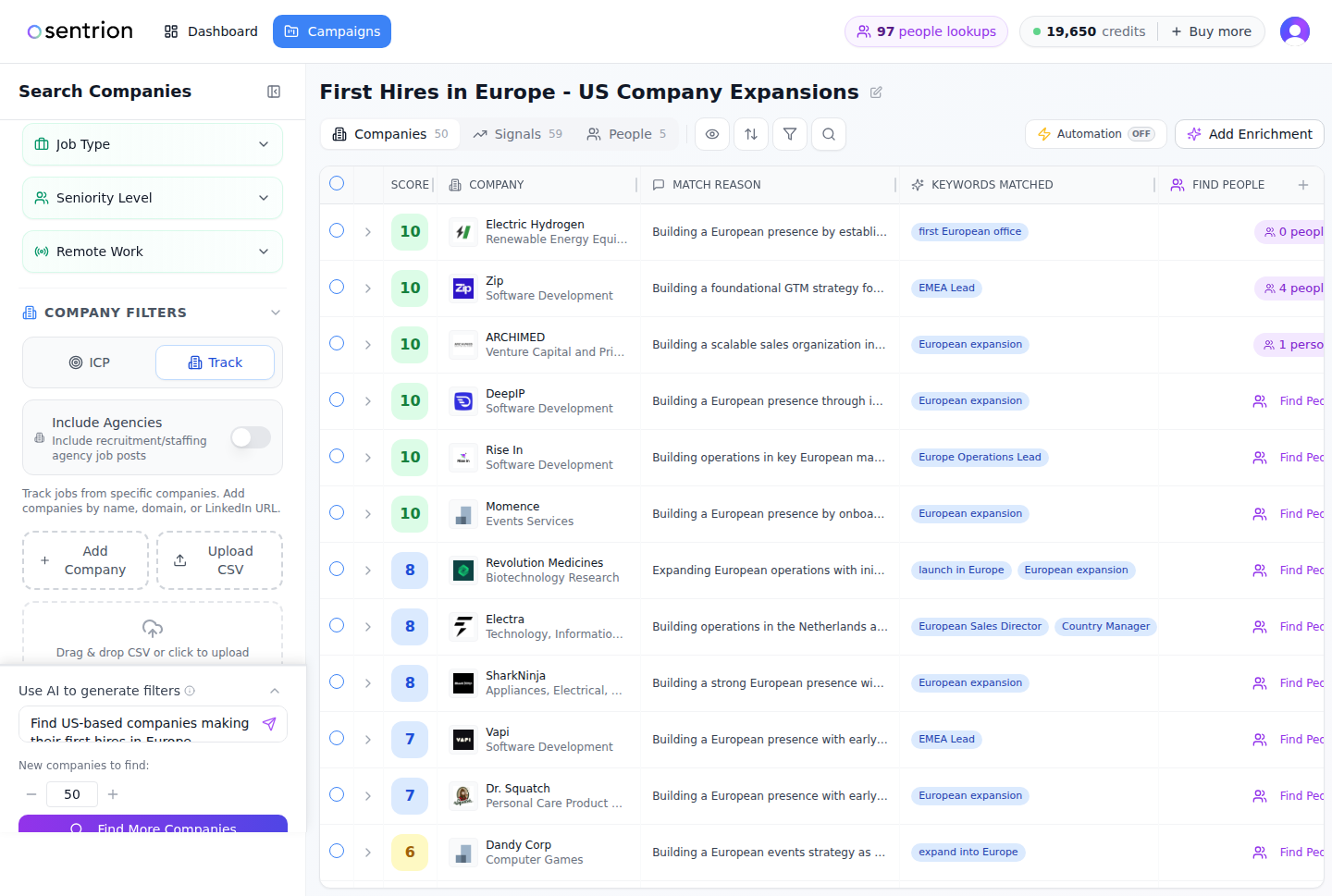
The Track tab in the campaign sidebar
Adding companies
You can add companies to your tracking list in two ways:Search by name, domain, or LinkedIn
Click Add Company and search by:- Company name (e.g., “Stripe”)
- Domain (e.g., “stripe.com”)
- LinkedIn URL (e.g., “linkedin.com/company/stripe”)
Bulk import via CSV
For larger lists, use CSV upload:- Click Upload CSV
- Drag and drop your file or use the file picker
- Sentrion’s AI auto-detects name, domain, and LinkedIn columns from your CSV
When to use account tracking
Account tracking is the right mode when you already know which companies to watch, and want to catch when they start hiring for roles that matter to you:- ABM campaigns: monitor your top target accounts for new hiring signals that create openings for outreach
- Competitor monitoring: track competitors’ hiring patterns to understand their strategy, investments, and growth areas
- Pipeline tracking: watch accounts in your active sales pipeline for new signals that strengthen your timing or positioning
- Customer intelligence: monitor existing customers for expansion signals, new initiatives, or leadership changes that create upsell opportunities
- Market research: track a set of companies in a specific vertical to understand industry-wide hiring trends
Combining with signal filters
Track mode works alongside all job signal filters. After adding your companies, configure:- Job Keywords: surface only the roles and technologies you care about
- Departments: focus on specific teams (e.g., Engineering, Sales)
- Seniority Level: filter for leadership hires vs. individual contributors
- AI Signal Scoring: score and rank signals by relevance to your criteria
- Signal Date Range: control how far back to look for postings
Track mode vs. ICP mode
Setting up automation
Once your tracked accounts and signal filters are configured, enable Auto-Update in the Automation panel to receive daily updates when new matching signals appear. Combined with webhook exports, you can push new signals directly to your CRM or Slack as they’re detected.What to do next
Search & Filters
Master AI search, job filters, and company filters for ICP-based discovery
Automation & Exports
Set up daily auto-updates and webhook exports for your tracked accounts