

AI-powered search
The fastest way to find companies. Describe what you’re looking for in plain English and Sentrion’s AI generates structured filters automatically.From the Dashboard
- Type your query into the main search bar (e.g., “SaaS companies hiring for sales roles in Europe”)
- Optionally set quick filters: Signal Date Range, Location, Company Size, ICP Analysis
- Click the purple Search button. This creates a new campaign with results
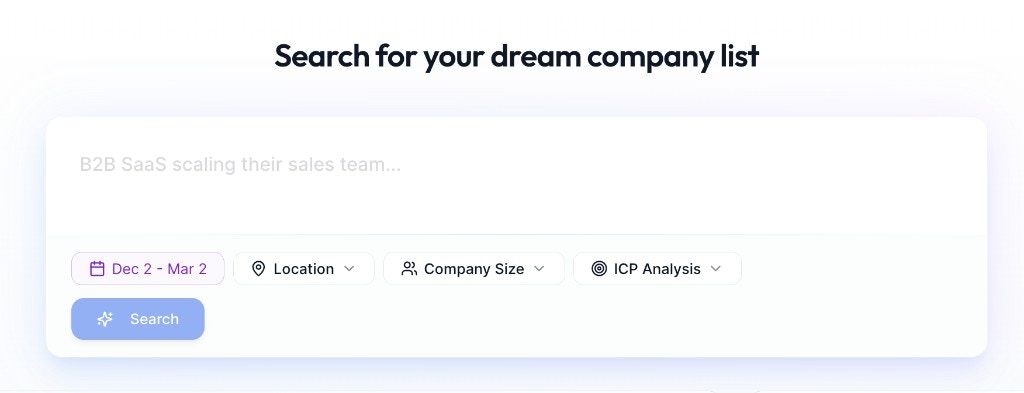
The Dashboard search bar with quick filters
From inside a campaign
- In the left sidebar, scroll to “Use AI to generate filters”
- Type a natural language description of what you’re looking for
- Click the purple send button
- AI populates all sidebar filters (keywords, departments, scoring criteria, etc.)
- Set “New companies to find” (default: 50)
- Click Find Companies to run the search
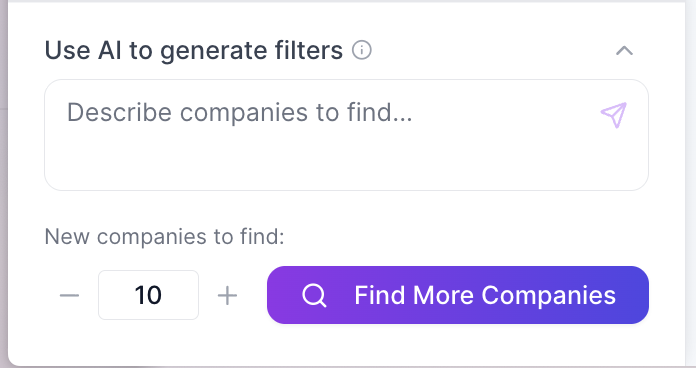
The AI filter generator inside a campaign sidebar
Example prompts
- “Find companies launching new AI initiatives”
- “SaaS companies hiring VP of Sales”
- “Tech companies in NYC building AI products”
- “Manufacturing companies in the UK looking for C++ developers”
- “Find US-based companies making their first hires in Europe”
- “Companies adopting Kubernetes”
Tips
- Be specific about industry, role, and location for better results
- Include the type of signal you’re looking for (hiring, expanding, new office, tech adoption)
- Always review generated keywords for false positives. The AI may include terms that are too broad or ambiguous. Remove any that could match irrelevant job postings and add exclusion terms for common sources of noise
- You can manually adjust any AI-generated filter after it’s applied
- Each job found costs 1 credit; filtering and browsing existing results is free
Signal date range
Controls how far back Sentrion looks for job postings.- Last 7-30 days: companies actively hiring right now (hottest prospects)
- Last 3 months: good balance of recency and volume (default)
- 6+ months: trend analysis and market research
Job signal filters
These filters narrow results based on job posting content.Job keywords
Two types of keyword matching:- Job Title Keywords: terms to match in job titles (e.g., “Europe Lead”, “Country Manager”, “VP Sales”)
- Job Description Keywords: terms to match in job descriptions (e.g., “first hire Europe”, “build European team”)
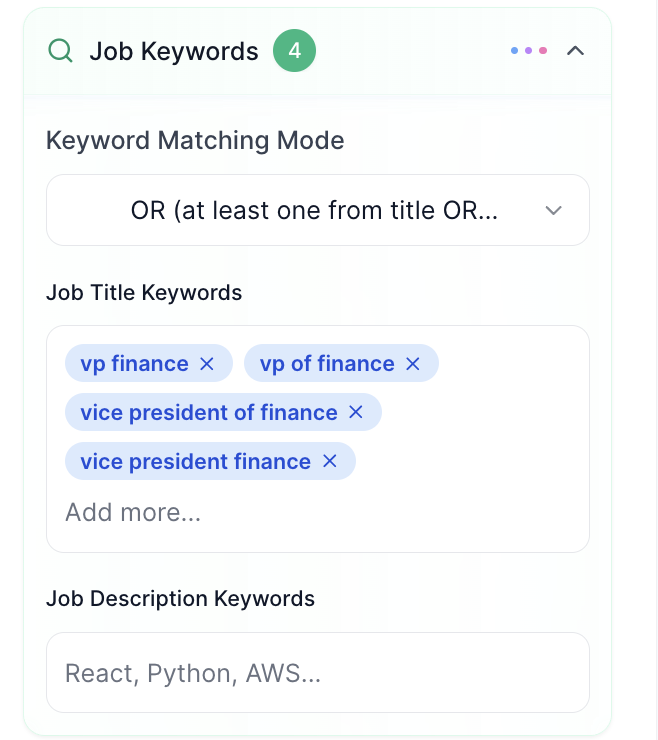
Job Keywords filter with title and description keyword inputs
- OR: any keyword match counts (broader results). Best for most searches.
- AND: all keywords must match (precise targeting). Use for very specific searches.
Exclude keywords
Remove unwanted results by adding exclusion terms. Common exclusions:- “intern”, “internship”, “part-time”, “volunteer”: focus on real hiring signals
- “agency”, “staffing”: remove recruiter postings
- “assistant”, if you’re targeting senior roles
Departments
Searchable checkbox list to filter by department. Options include: Accounting, Administration, Business Development, Communications, Compliance, Customer Success, Data Analytics, Design, Engineering, Finance, Human Resources, Information Technology, Marketing, Sales, and 20+ more.Job location
Geographic filter for where jobs are posted. Useful for finding companies hiring in specific regions.Job type
Filter by employment type: Full-time, Part-time, Contract, Internship, Volunteer.Seniority level
Three levels:- Entry Level: individual contributors, junior roles
- Mid Level: experienced professionals, team leads
- Executive Level: directors, VPs, C-suite
Remote work
Filter for remote, hybrid, or on-site positions.Company filters (ICP mode)
Filter by company characteristics. These are available when the ICP tab is selected (default) at the top of the Company Filters section.Include agencies
Toggle to include or exclude recruitment/staffing agency job posts. OFF by default: filters out agency postings so you only see direct company hiring.Company size
Employee count range selector with tiles: 1-10, 11-50, 51-200, 201-500, 501-1K, 1K-5K, 5K-10K, 10K+. Select one or more ranges.Industry
Searchable multi-select dropdown. Select one or more industries to focus your search.Company HQ location
Filter companies by their headquarters country. Select one or more countries using the dropdown.Account tracking (Track mode)
Switch from the ICP tab to the Track tab to monitor specific companies instead of discovering new ones. Track mode is for ABM campaigns, competitor monitoring, pipeline tracking, and more. See the full Account Tracking guide for details on adding companies, bulk CSV import, and combining track mode with signal filters.Combining filters for precision
The most effective campaigns combine multiple filter types:- Start with AI search: let the AI generate a baseline filter set
- Adjust keywords: add or remove terms based on your specific needs
- Set company filters: narrow by size, industry, or HQ location
- Configure signal scoring: add custom criteria with weights (see AI Signal Scoring)
- Exclude noise: add exclusion keywords to clean up results
- Click Find Companies to run the refined search